

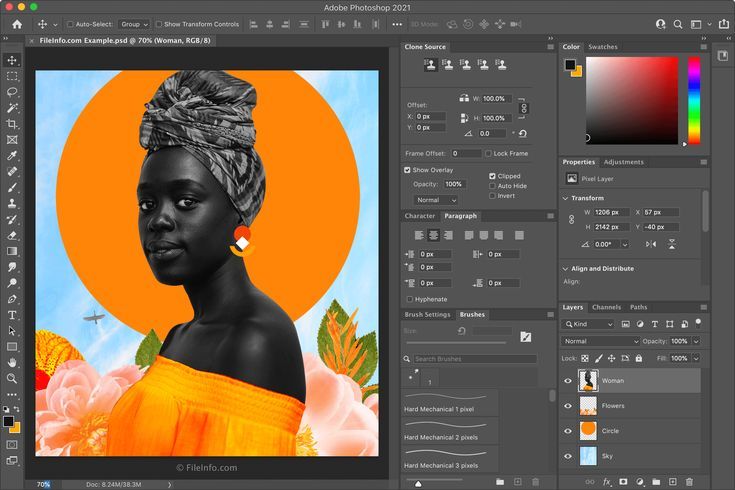
Photoshop has hundreds of keyboard shortcuts, but you only need about forty of them to work noticeably faster. Below are the ones worth learning first, grouped by task. Keys are written as Windows / Mac.
How to use these shortcuts
Tool shortcuts are single letters with no modifier key. As long as you're not typing in a text field, tapping B switches straight to the Brush.
- Shift + letter cycles related tools. Shift+E moves between the Eraser, Background Eraser and Magic Eraser.
- Some modifiers only work while held. Hold Alt/Option while painting for a temporary Eyedropper; hold Space at any time for a temporary Hand tool.
- You can change any of them. Go to Edit > Keyboard Shortcuts to reassign keys or print a full list for your version.
- Learn one group at a time. Pick a single section below and use only those keys for a day before moving on.
Essential tools
Tap the letter — no modifier needed.
| Shortcut | What it does |
|---|---|
V |
Move tool |
M |
Marquee selection (rectangle / ellipse) |
L |
Lasso — Shift+L cycles Polygonal and Magnetic |
W |
Quick Selection / Magic Wand |
C |
Crop |
I |
Eyedropper |
J |
Spot Healing Brush |
B |
Brush |
S |
Clone Stamp |
E |
Eraser |
G |
Gradient / Paint Bucket |
T |
Type |
U |
Shape |
H |
Hand |
Z |
Zoom |
X |
Swap foreground and background colors |
D |
Reset to default black and white |
View and navigation
| Shortcut | What it does |
|---|---|
Ctrl / Cmd + + or − |
Zoom in or out |
Ctrl / Cmd + 0 |
Fit the image on screen |
Ctrl / Cmd + 1 |
View at 100% |
Space + drag |
Pan around the canvas |
Tab |
Hide or show all panels |
F |
Cycle screen modes |
Selection and masking
| Shortcut | What it does |
|---|---|
Ctrl / Cmd + D |
Deselect |
Ctrl / Cmd + Shift + D |
Reselect the last selection |
Ctrl / Cmd + A |
Select all |
Ctrl / Cmd + Shift + I |
Invert the selection |
Ctrl / Cmd + click thumbnail |
Load that layer's pixels as a selection |
Alt / Opt + click mask icon |
Add a mask that hides the selection instead of revealing it |
Layers
| Shortcut | What it does |
|---|---|
Ctrl / Cmd + Shift + N |
New layer |
Ctrl / Cmd + J |
Duplicate layer, or copy a selection to its own layer |
Ctrl / Cmd + E |
Merge down |
Ctrl / Cmd + Shift + Alt/Opt + E |
Stamp all visible layers into a new one |
Ctrl / Cmd + G |
Group the selected layers |
Alt / Opt + click between layers |
Clip a layer to the one below it |
Ctrl / Cmd + ] or [ |
Move a layer up or down the stack |
Editing and transform
| Shortcut | What it does |
|---|---|
Ctrl / Cmd + T |
Free Transform |
Ctrl / Cmd + Z |
Undo |
Ctrl / Cmd + Shift + Z |
Redo / step forward |
Ctrl / Cmd + Alt/Opt + Z |
Step backward through history |
Ctrl / Cmd + L |
Levels |
Ctrl / Cmd + M |
Curves |
Ctrl / Cmd + U |
Hue / Saturation |
Ctrl / Cmd + I |
Invert colors |
Files and workspace
| Shortcut | What it does |
|---|---|
Ctrl / Cmd + N |
New document |
Ctrl / Cmd + O |
Open |
Ctrl / Cmd + S |
Save |
Ctrl / Cmd + Shift + S |
Save As |
Ctrl / Cmd + Shift + Alt/Opt + W |
Export As (PNG, JPG and so on) |
Ctrl / Cmd + Alt/Opt + Shift + K |
Open the Keyboard Shortcuts editor |
Where to start
If you only take three away: Ctrl/Cmd + J to duplicate before you edit, Space + drag to move around while zoomed in, and Alt/Opt + click to clip an adjustment to a single layer. Those three cover most of what slows people down day to day.
Shortcuts here reflect the current desktop version of Photoshop. Defaults shift slightly between releases, and anything can be remapped under Edit > Keyboard Shortcuts.