

200 Essential Microsoft Word Keyboard Shortcuts
Boost your productivity with this comprehensive list of 200 shortcuts for Microsoft Word on Windows. (For Mac users, generally replace Ctrl with Cmd and Alt with Opt).
1. Basic File Operations
-
Ctrl + N: Create a new document
-
Ctrl + O: Open an existing document
-
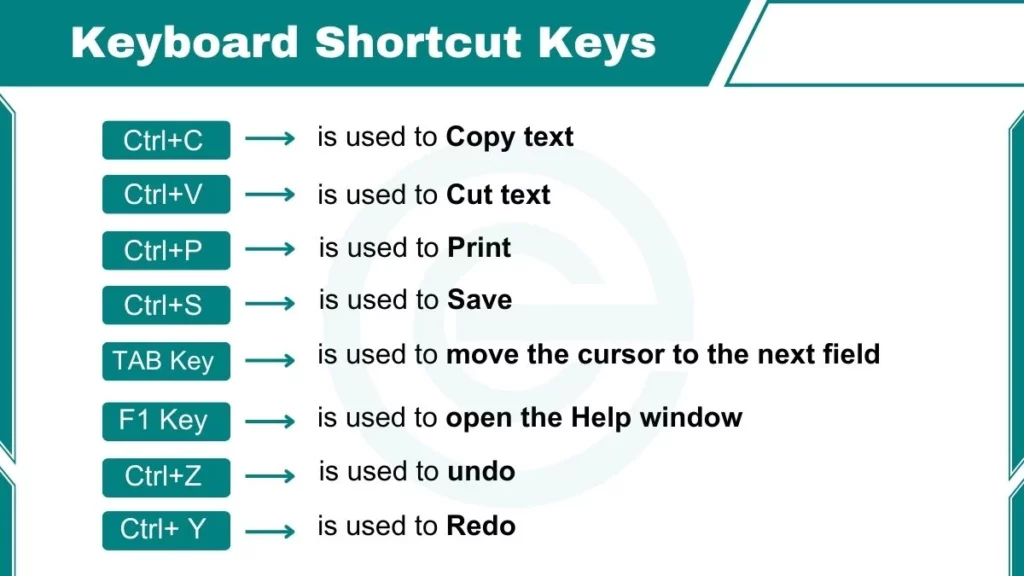
Ctrl + S: Save the current document
-
F12: Save As
-
Ctrl + P: Print the document
-
Ctrl + W: Close the current document
-
Ctrl + Z: Undo the last action
-
Ctrl + Y: Redo the last action
-
Esc: Cancel a command or close a dialog box
-
Ctrl + F1: Show or hide the ribbon
-
Alt + F4: Close Word
-
Ctrl + F12: Open (same as Ctrl + O)
-
Shift + F12: Save (same as Ctrl + S)
-
Ctrl + Shift + F12: Print (same as Ctrl + P)
2. Navigation & Selection
-
Ctrl + F: Open the Navigation pane (Find)
-
Ctrl + H: Open Replace tab
-
Ctrl + G: Open Go To tab
-
Ctrl + Home: Move to the beginning of the document
-
Ctrl + End: Move to the end of the document
-
Ctrl + Left Arrow: Move one word to the left
-
Ctrl + Right Arrow: Move one word to the right
-
Ctrl + Up Arrow: Move up one paragraph
-
Ctrl + Down Arrow: Move down one paragraph
-
Page Up: Move up one screen
-
Page Down: Move down one screen
-
Ctrl + Page Up: Move to the top of the previous page
-
Ctrl + Page Down: Move to the top of the next page
-
Ctrl + A: Select the entire document
-
Shift + Arrow Keys: Select text character by character
-
Ctrl + Shift + Arrow Keys: Select text word by word
-
Shift + Home: Select from cursor to beginning of line
-
Shift + End: Select from cursor to end of line
-
Ctrl + Shift + Home: Select from cursor to beginning of document
-
Ctrl + Shift + End: Select from cursor to end of document
-
F8: Turn on Extend Selection mode (press Esc to exit)
-
Alt + Ctrl + S: Split the document window
-
Alt + Shift + C: Remove the document window split
-
Shift + F5: Move to the last change made
-
Alt + Ctrl + Z: Switch between the last four places you made changes
-
Home: Move to the beginning of the current line
-
End: Move to the end of the current line
-
Alt + Ctrl + Page Up: Move to the top of the current window
-
Alt + Ctrl + Page Down: Move to the bottom of the current window
3. Editing & Clipboard
-
Ctrl + C: Copy selected text or object
-
Ctrl + X: Cut selected text or object
-
Ctrl + V: Paste
-
Ctrl + Alt + V: Paste Special
-
Ctrl + Shift + C: Copy formatting only
-
Ctrl + Shift + V: Paste formatting only
-
Delete: Delete one character to the right
-
Backspace: Delete one character to the left
-
Ctrl + Delete: Delete one word to the right
-
Ctrl + Backspace: Delete one word to the left
-
Shift + F3: Change case (Uppercase, Lowercase, Sentence case)
-
Ctrl + K: Insert a hyperlink
-
Alt + Shift + D: Insert the current date
-
Alt + Shift + T: Insert the current time
-
Ctrl + F3: Cut to the Spike (a special clipboard)
-
Ctrl + Shift + F3: Paste the contents of the Spike
-
Alt + F3: Create an AutoText entry
-
F3: Expand an AutoText entry
-
Enter: Insert a new paragraph
-
Shift + Enter: Insert a line break (soft return)
4. Character Formatting
-
Ctrl + B: Apply/Remove Bold
-
Ctrl + I: Apply/Remove Italic
-
Ctrl + U: Apply/Remove Underline
-
Ctrl + Shift + D: Double underline
-
Ctrl + Shift + W: Underline words only (no spaces)
-
Ctrl + Shift + H: Apply Hidden text formatting
-
Ctrl + [: Decrease font size by 1 point
-
Ctrl + ]: Increase font size by 1 point
-
Ctrl + Shift + <: Decrease font size to the next standard size
-
Ctrl + Shift + >: Increase font size to the next standard size
-
Ctrl + Spacebar: Remove all manual character formatting
-
Ctrl + D: Open the Font dialog box
-
Ctrl + Shift + A: Format all letters as capitals
-
Ctrl + Shift + K: Format letters as small capitals
-
Ctrl + Equals (=): Apply Subscript
-
Ctrl + Shift + Plus (+): Apply Superscript
-
Ctrl + Shift + F: Change the font
-
Ctrl + Shift + P: Change the font size
-
Ctrl + Shift + S: Apply a style
-
Alt + Ctrl + K: Start AutoFormat
-
Ctrl + Shift + Q: Change text to Symbol font
5. Paragraph Formatting
-
Ctrl + L: Left align paragraph
-
Ctrl + E: Center align paragraph
-
Ctrl + R: Right align paragraph
-
Ctrl + J: Justify paragraph
-
Ctrl + M: Increase paragraph indent from the left
-
Ctrl + Shift + M: Decrease paragraph indent from the left
-
Ctrl + T: Create a hanging indent
-
Ctrl + Shift + T: Reduce a hanging indent
-
Ctrl + Q: Remove all paragraph formatting
-
Ctrl + 1: Set single-spacing
-
Ctrl + 2: Set double-spacing
-
Ctrl + 5: Set 1.5-line spacing
-
Ctrl + 0: Add/Remove one line of space above the paragraph
-
Ctrl + Alt + 1: Apply Heading 1 style
-
Ctrl + Alt + 2: Apply Heading 2 style
-
Ctrl + Alt + 3: Apply Heading 3 style
-
Ctrl + Shift + L: Apply the List style
-
Ctrl + Shift + N: Apply Normal style
-
Alt + Shift + Right Arrow: Demote a paragraph
-
Alt + Shift + Left Arrow: Promote a paragraph
6. Inserting Breaks & References
-
Ctrl + Enter: Insert a Page Break
-
Ctrl + Shift + Enter: Insert a Column Break
-
Alt + Ctrl + F: Insert a Footnote
-
Alt + Ctrl + D: Insert an Endnote
-
Ctrl + Shift + Spacebar: Insert a non-breaking space
-
Ctrl + Hyphen (-): Insert a non-breaking hyphen
-
Alt + Shift + O: Mark a Table of Contents entry
-
Alt + Shift + X: Mark an Index entry
-
Alt + Shift + I: Mark a Citation (Table of Authorities)
-
Ctrl + Alt + C: Insert the Copyright symbol ©
-
Ctrl + Alt + R: Insert the Registered Trademark symbol ®
-
Ctrl + Alt + T: Insert the Trademark symbol ™
-
Ctrl + Alt + Period: Insert an ellipsis (…)
7. Working with Tables
-
Tab: Move to the next cell
-
Shift + Tab: Move to the previous cell
-
Alt + Home: Move to the first cell in a row
-
Alt + End: Move to the last cell in a row
-
Alt + Page Up: Move to the first cell in a column
-
Alt + Page Down: Move to the last cell in a column
-
Alt + Shift + Up Arrow: Move a row up
-
Alt + Shift + Down Arrow: Move a row down
-
Ctrl + Shift + Enter: Split a table (when cursor is in a row)
-
Alt + 5 (on Numpad): Select the entire table (Num Lock must be off)
8. Reviewing & Views
-
F7: Run Spelling and Grammar check
-
Shift + F7: Open the Thesaurus
-
Alt + Ctrl + M: Insert a Comment
-
Alt + Ctrl + N: Switch to Normal/Draft view
-
Alt + Ctrl + P: Switch to Print Layout view
-
Alt + Ctrl + O: Switch to Outline view
-
Alt + Ctrl + L: Switch to Web Layout view
-
Alt + R, P: Open Reviewing Pane
-
Ctrl + Alt + V: Print Preview Edit Mode
-
Alt + F10: Maximize the Word window
-
Alt + F5: Restore the Word window size
9. Fields and Formulas
-
Alt + Shift + F9: Run Check It or GOTOBUTTON from a field
-
F9: Update selected fields
-
Ctrl + F9: Insert empty field braces {}
-
Shift + F9: Switch between a field code and its result
-
Alt + F9: Switch between all field codes and results
-
Ctrl + F11: Lock a field
-
Ctrl + Shift + F11: Unlock a field
-
Alt + Shift + Enter: View fields in a list
-
Alt + Equals (=): Insert an equation/formula
10. Outline View Specifics
-
Alt + Shift + Plus (+): Expand text under a heading
-
Alt + Shift + Minus (-): Collapse text under a heading
-
Alt + Shift + A: Expand or collapse all text or headings
-
Slash (/) (on Numpad): Hide or display character formatting
-
Alt + Shift + L: Show the first line of body text or all body text
-
Alt + Shift + 1: Show all headings with Heading 1 style
-
Alt + Shift + N: Show all headings up to Heading n
11. Mail Merge
-
Alt + Shift + K: Preview a mail merge
-
Alt + Shift + N: Merge a document
-
Alt + Shift + M: Print the merged document
-
Alt + Shift + E: Edit a mail-merge data document
-
Alt + Shift + F: Insert a merge field
12. Function Keys (Stand-alone)
-
F1: Get help
-
F2: Move text or graphics (Select, press F2, then move cursor and press Enter)
-
F4: Repeat the last action
-
F5: Choose the Go To command
-
F6: Go to the next pane or frame
-
F9: Update selected fields
-
F10: Turn on key tips (Access the Ribbon via keyboard)
-
F11: Go to the next field
-
F12: Save As
13. Function Keys (with Shift)
-
Shift + F1: Review text formatting (Reveal Formatting)
-
Shift + F2: Copy text
-
Shift + F3: Change case
-
Shift + F4: Repeat a Find or Go To action
-
Shift + F5: Move to the last change
-
Shift + F6: Go to the previous pane or frame
-
Shift + F7: Thesaurus
-
Shift + F8: Reduce the size of a selection
-
Shift + F9: Switch between field code/result
-
Shift + F10: Display shortcut menu (Right-click)
-
Shift + F11: Go to the previous field
-
Shift + F12: Save
14. Function Keys (with Ctrl)
-
Ctrl + F2: Print Preview
-
Ctrl + F3: Cut to Spike
-
Ctrl + F4: Close the window
-
Ctrl + F5: Restore document window size
-
Ctrl + F6: Go to the next window
-
Ctrl + F7: Choose Move command (title bar shortcut menu)
-
Ctrl + F8: Choose Size command (title bar shortcut menu)
-
Ctrl + F9: Insert empty field
-
Ctrl + F10: Maximize the document window
-
Ctrl + F11: Lock a field
15. Advanced Formatting & Misc
-
Alt + Ctrl + I: Switch to Print Preview
-
Ctrl + Alt + H: Apply highlight formatting
-
Ctrl + Shift + E: Turn Track Changes on or off
-
Alt + Shift + C: Close the Reviewing Pane if open
-
Ctrl + Alt + K: AutoFormat
-
Alt + Shift + G: Open the Word Count dialog box
-
Ctrl + Shift + 8: Display all nonprinting characters (the ¶ mark)
-
Alt + Shift + R: Copy header/footer from previous section
-
Alt + Shift + S: Open/Close Document Map
-
Ctrl + Shift + T: Move to previous open Word document